
Three acronyms stand between your cold emails and the inbox. Most senders either do not know what they are, configure them incorrectly, or set them up once and never check them again.
The consequences are severe: 98% of spam filters check authentication records before they look at anything else. Your subject line, your copy, your offer — none of it matters if your emails fail authentication at the first gate. Properly authenticated cold emails pull 15–20% response rates. Unauthenticated ones see 10–20% lower inbox placement — and that gap widens every quarter.
In 2026, email providers have zero tolerance for unauthenticated mail. Gmail and Yahoo began enforcement in February 2024. Outlook followed in May 2025. Three of the world's four largest inbox providers now enforce authentication as a hard requirement — meaning unauthenticated emails are not just flagged or filtered. They are rejected outright.
Yet the statistics are staggering: only 33.4% of top websites have a valid DMARC record, and fewer than 16% enforce it at the reject or quarantine level. Only 23.6% of teams verify their email lists before sending. The gap between what is required and what most senders have implemented represents the single biggest deliverability opportunity in 2026.
This guide closes that gap. You will get plain-English explanations of what SPF, DKIM, and DMARC actually do, why each one matters, copy-paste DNS records for immediate implementation, step-by-step setup for all major email platforms and DNS providers, the exact DMARC rollout roadmap, every common mistake and its fix, and a complete troubleshooting guide.
No jargon. No gatekeeping. Just the configuration that gets your emails to the inbox.
The Airport Security Analogy: SPF, DKIM, and DMARC in 30 Seconds
Before a single line of DNS configuration, here is the concept in plain English.
Every email you send passes through a security checkpoint at the recipient's mail server. That checkpoint asks three questions:
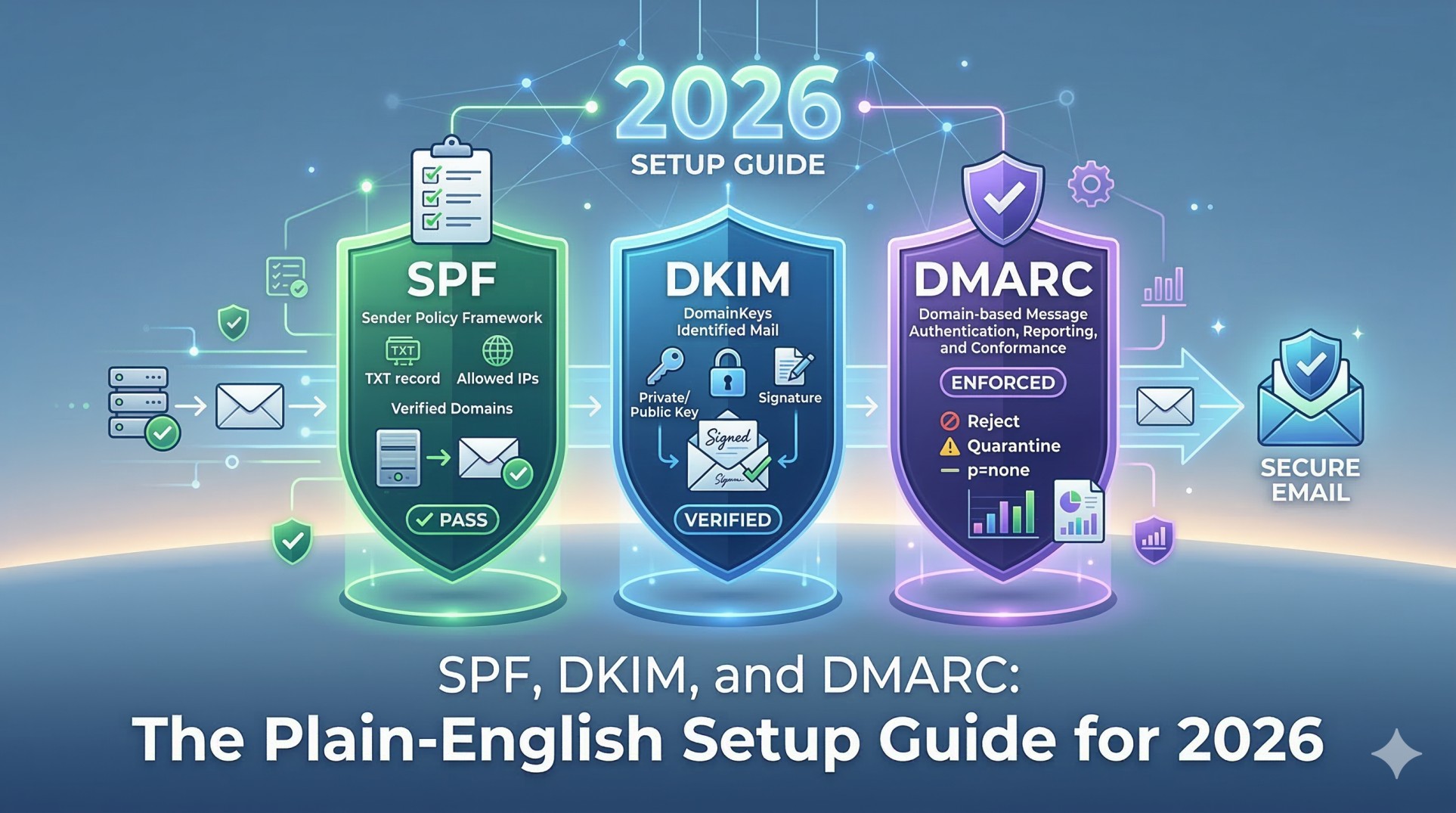
SPF asks: "Is this sender on the approved list?" SPF is your guest list — it tells receiving mail servers which email servers are allowed to send mail for your domain. If you send newsletters via Mailchimp and sales emails via Gmail, SPF tells inboxes both are legitimate sources. Without it, anyone can pretend to send from your domain.
DKIM asks: "Has this message been tampered with?" DKIM is a wax seal on the envelope — it adds an encrypted signature to each email. If someone tampers with the content in transit, the signature breaks and the email fails authentication. DKIM proves both that the email came from an authorized sender and that every word is exactly as you wrote it.
DMARC asks: "What should I do when they fail — and who should I tell?" DMARC is the security officer at the final checkpoint — it checks whether SPF or DKIM passed, decides what to do with emails that fail (deliver, quarantine, or reject outright), and sends you daily reports showing exactly who is sending email from your domain and whether it is passing authentication.
Together they form a layered authentication system. Each layer catches what the others miss. Skip any one of them and your emails are vulnerable to spam folder routing, deliverability penalties, and domain spoofing attacks that damage your brand.
Why Authentication Matters More Than Ever in 2026
The 2026 Authentication Landscape: By the Numbers
Metric 2026 Data Source Spam filters checking authentication first 98% Prospeo Cold Email Guide 2026 Inbox placement improvement (auth vs no auth) 10–20% better Prospeo 2026 Cold email response rate: authenticated 15–20% Prospeo 2026 Cold email response rate: unauthenticated 2–5% Prospeo 2026 Gmail enforcement started February 2024 Google Yahoo enforcement started February 2024 Yahoo Outlook enforcement started May 2025 Microsoft DMARC adoption rate (top websites) 53.8% (up from 42.6% in 2023) Groupmail / Valimail 2025 Websites enforcing DMARC at reject/quarantine Under 16% SparkDBI 2026 Unauthenticated messages blocked globally by DMARC 265 billion Groupmail 2025 DMARC new domain adoption growth 55K → 110K new domains/month Valimail 2024 Legitimate emails never reaching the inbox 1 in 6 Validity / CaptainDNS 2026
What Happens Without Each Record
Missing Record Immediate Consequence Long-Term Consequence No SPF Receiving servers cannot verify your sending server Emails flagged as suspicious; higher spam placement rate No DKIM No cryptographic proof message wasn't tampered with Missing trust signal; reduced deliverability across all major providers No DMARC No policy enforcement; no reporting visibility Domain open to spoofing; Outlook deprioritizes emails; Gmail/Yahoo enforce bulk sender penalties SPF + DKIM but no DMARC Alignment gap exploitable by spoofers Spammers can still forge your From address even if SPF/DKIM individually pass All three present but misaligned DMARC alignment failure Emails fail DMARC check despite passing individual SPF/DKIM — functionally same as no authentication
Part 1: SPF — The Complete Setup Guide
What Is an SPF Record?
An SPF (Sender Policy Framework) record is a DNS TXT record that lists every mail server authorized to send email from your domain. When a receiving server gets an email claiming to be from you, it queries your DNS for the SPF record and checks whether the sending server's IP address is on the approved list.
SPF Record Syntax — Fully Decoded
A typical SPF record:
v=spf1 include:_spf.google.com include:servers.mcsv.net include:sendgrid.net ~all
Component Meaning v=spf1 SPF version — always starts here include:_spf.google.com Authorizes Google Workspace to send from your domain include:servers.mcsv.net Authorizes Mailchimp to send from your domain include:sendgrid.net Authorizes SendGrid to send from your domain ~all Soft fail — unlisted servers are suspicious but not necessarily rejected -all Hard fail — unlisted servers are rejected entirely ?all Neutral — no guidance (not recommended for any sender)
The 10-Lookup Limit: The Invisible SPF Killer
This is the most common SPF mistake — and it silently breaks authentication for thousands of senders.
SPF records are limited to 10 DNS lookups. Each include: statement counts as one lookup, and each included record may trigger additional nested lookups. Exceed 10 lookups and your SPF record returns a "PermError" — which major inbox providers treat as an SPF failure, even if your sending servers are legitimately listed.
Teams using Google Workspace + Mailchimp + SendGrid + HubSpot + a cold email tool + a transactional email service can easily exceed 10 lookups without realizing it. Set a calendar reminder to check your lookup count quarterly using MXToolbox.com/spf.aspx.
How to fix the 10-lookup problem: Use an SPF flattening tool (SPF Optimizer, EasyDMARC's SPF Flattening) to convert your includes into a flat list of IP addresses — reducing lookups to 1–2 regardless of how many services you use. Note: the flattened list needs updating every time a service changes its IP ranges.
Copy-Paste SPF Records for Common Service Combinations
Google Workspace only:
v=spf1 include:_spf.google.com ~all
Google Workspace + Mailchimp:
v=spf1 include:_spf.google.com include:servers.mcsv.net ~all
Google Workspace + SendGrid + HubSpot:
v=spf1 include:_spf.google.com include:sendgrid.net include:_spf.hubspot.com ~all
Microsoft 365 + Mailgun + Klaviyo:
v=spf1 include:spf.protection.outlook.com include:mailgun.org include:_spf.klaviyo.com ~all
SPF Include Values for Major Email Services
Service SPF Include Value Google Workspace include:_spf.google.com Microsoft 365 include:spf.protection.outlook.com Mailchimp include:servers.mcsv.net SendGrid include:sendgrid.net HubSpot include:_spf.hubspot.com Mailgun include:mailgun.org Postmark include:spf.mtasv.net Klaviyo include:_spf.klaviyo.com Salesforce include:_spf.salesforce.com Zendesk include:mail.zendesk.com Freshdesk include:email.freshdesk.com
Step-by-Step SPF Setup
Check for existing SPF record: MXToolbox.com/spf.aspx — a domain can only have ONE SPF TXT record; if one exists, modify it, never create a second
List every sending service you use for email
Find each service's include value from the table above or their documentation
Construct your single SPF record combining all includes under
v=spf1Add TXT record in your DNS provider:
Name/Host:
@(root domain)Type: TXT
Value: Your complete SPF record
TTL: 3600
Wait 24–48 hours, then verify at MXToolbox — look for "SPF: PASS"
SPF Setup by DNS Provider
DNS Provider Navigation Path Cloudflare DNS → Add Record → Type: TXT → Name: @ GoDaddy DNS Management → Add → TXT → Host: @ Namecheap Advanced DNS → Add New Record → TXT Record AWS Route 53 Hosted Zones → Record Sets → Create Record → Type: TXT Google Domains DNS → Manage Custom Records → Add Custom Record Bluehost cPanel → Zone Editor → Add Record → TXT Squarespace Domains → DNS Settings → Add Record → TXT
Part 2: DKIM — The Complete Setup Guide
What Is DKIM?
DKIM (DomainKeys Identified Mail) uses public-key cryptography to add a digital signature to every email you send. The receiving server verifies this signature against a public key stored in your DNS — proving the email was authorized by your domain and that the content was not altered in transit.
How DKIM Cryptography Works (Plain English)
YOU SEND AN EMAIL
        ↓
Your sending server applies a PRIVATE KEY
to create a unique digital signature
(added invisibly to email header)
        ↓
Email travels across the internet
        ↓
Recipient's server looks up your PUBLIC KEY
from your DNS (the DKIM TXT record)
        ↓
Server uses the public key to verify the signature
        ↓
✅ Signature matches = Email authenticated + content intact
❌ Signature fails = Email was tampered with or unauthorized
DKIM Record Structure — Decoded
google._domainkey.yourdomain.com TXT "v=DKIM1; k=rsa; p=MIGfMA0GCSqGSIb..."
Component Meaning google The DKIM selector — identifies this specific key (you can have multiple) _domainkey Standard required subdomain for all DKIM records yourdomain.com Your sending domain v=DKIM1 DKIM version — always starts here k=rsa Encryption algorithm (RSA is standard in 2026) p=MIGfMA0... Your public key — long alphanumeric string, do not modify
Step-by-Step DKIM Setup
Step 1: Enable DKIM in your email service
Each sending service has its own DKIM configuration panel:
Service DKIM Setup Location Google Workspace Admin Console → Apps → Google Workspace → Gmail → Authenticate Email Microsoft 365 Microsoft 365 Defender → Policies & Rules → Threat Policies → Email Authentication → DKIM Mailchimp Account → Extras → Domains → Authenticate Domain SendGrid Settings → Sender Authentication → Domain Authentication → Get Started HubSpot Settings → Website → Domains & URLs → Email Authentication Klaviyo Account → Settings → Email → Sending Domains Postmark Sender Signatures → DKIM
Step 2: Generate a 2048-bit key Always select 2048-bit key length — never 1024-bit. 1024-bit keys are cryptographically weak in 2026 and may be penalized by progressive spam filters.
Step 3: Copy the provided DNS record exactly Your service will give you a CNAME or TXT record. Copy every character — including the full public key. A single character error breaks the entire signature.
Step 4: Add to DNS at the correct host
The host format is always: [selector]._domainkey.yourdomain.com
Example:
google._domainkey.yourdomain.comType: TXT (or CNAME depending on provider)
TTL: 3600
Step 5: Verify at MXToolbox DKIM Lookup Enter your domain and selector. You should see "DKIM Valid."
Step 6: Repeat for every sending service Every service you use to send email needs its own DKIM configuration and its own DKIM record in DNS. This is non-negotiable — DMARC alignment requires every sending service to be DKIM-signed.
DKIM Key Rotation Schedule
Action Timing Initial setup Day 1 First rotation 6–12 months after setup Leave old key in DNS 48 hours after new key is live Remove old key After 48-hour grace period Ongoing rotations Every 6–12 months
Part 3: DMARC — The Complete Setup and Rollout Guide
What Is DMARC?
DMARC is the capstone of email authentication. It builds on SPF and DKIM with two capabilities neither provides alone:
1. Alignment checking: DMARC requires the domain in the visible From address to match the domain verified by SPF or DKIM. Without alignment, spammers can pass SPF and DKIM using their own domain while showing your domain in the From field — making phishing emails look completely legitimate.
2. Policy enforcement + reporting: DMARC specifies what happens to emails that fail authentication (nothing / spam folder / rejected), and generates daily aggregate reports showing all email activity on your domain — including unauthorized senders you never knew existed.
DMARC Record Structure — Every Tag Explained
v=DMARC1; p=none; rua=mailto:[email protected]; ruf=mailto:[email protected]; pct=100
Tag Function Values v=DMARC1 Version declaration Fixed — always this p= Enforcement policy none / quarantine / reject rua= Aggregate report destination mailto:your@email.com ruf= Forensic failure report destination mailto:your@email.com pct= % of failing emails the policy applies to 1–100 (default: 100) sp= Subdomain policy none / quarantine / reject adkim= DKIM alignment mode r (relaxed) / s (strict) aspf= SPF alignment mode r (relaxed) / s (strict)
The 3 DMARC Policy Levels
Policy What It Does When to Use p=none Monitor only — collect reports, take no action Start here always — use for first 4 weeks p=quarantine Route failing emails to spam folder Move here after all legitimate sends pass authentication p=reject Reject failing emails entirely — never delivered Final destination — maximum domain protection
Copy-Paste DMARC Records
Phase 1 — Monitoring (Weeks 1–4):
v=DMARC1; p=none; rua=mailto:[email protected]
Phase 2 — Quarantine (Weeks 5–7):
v=DMARC1; p=quarantine; pct=25; rua=mailto:[email protected]
Phase 3 — Full Quarantine (Week 7+):
v=DMARC1; p=quarantine; pct=100; rua=mailto:[email protected]
Phase 4 — Full Rejection (Week 8+):
v=DMARC1; p=reject; rua=mailto:[email protected]
The 8-Week DMARC Rollout Roadmap
WEEK 1–4: MONITORING PHASE
───────────────────────────
Record: v=DMARC1; p=none; rua=mailto:[email protected]
Goal: Collect data. Find all senders. Fix authentication gaps.
Action: Review reports weekly. Fix every service showing DMARC failures.
Signal: When 100% of legitimate sends pass → advance to Phase 2

WEEK 5–6: SOFT QUARANTINE
──────────────────────────
Record: v=DMARC1; p=quarantine; pct=25; rua=mailto:[email protected]
Goal: Begin enforcement on 25% of failing emails
Action: Watch for legitimate emails being quarantined (false positives)
Signal: No false positives for 2 weeks → advance

WEEK 7: FULL QUARANTINE
────────────────────────
Record: v=DMARC1; p=quarantine; pct=100; rua=mailto:[email protected]
Goal: Full quarantine enforcement
Action: Continue monitoring — this is when remaining issues surface
Signal: No false positives for 1 week → advance

WEEK 8+: FULL REJECTION
────────────────────────
Record: v=DMARC1; p=reject; rua=mailto:[email protected]
Goal: Maximum domain protection achieved
Action: Monthly monitoring; update auth when adding new sending services
Result: Domain fully protected from spoofing. Inbox placement maximized.
The #1 mistake: leaving DMARC at p=none permanently. p=none is a monitoring phase, not a permanent setting. Outlook deprioritizes emails from domains with weak DMARC policies. Set a calendar reminder for Week 5 to escalate.
How to Add Your DMARC Record in DNS
Host: _dmarc  ← CRITICAL: This is NOT @ — it is a subdomain
Type: TXT
Value: v=DMARC1; p=none; rua=mailto:[email protected]
TTL: 3600
The most common DMARC error: Adding the record to @ (root domain) instead of _dmarc. The record must be at _dmarc.yourdomain.com — which in your DNS panel is entered as host _dmarc.
DMARC Report Processing Tools
DMARC aggregate reports are unreadable XML files. Use a parsing tool:
Tool Free Tier Best Feature DMARC Analyzer Yes — limited Clean dashboard, actionable alerts Dmarcian Yes Industry standard, detailed breakdowns EasyDMARC Yes Best UI for beginners Valimail Enterprise Automated enforcement recommendations Google Postmaster Tools v2 Free Direct Gmail data, new compliance dashboard
Set a monthly 15-minute calendar block to review your DMARC reports. This single habit prevents weeks of deliverability damage from silent authentication failures.
Authentication for Cold Email: The Extra Steps That Matter
Always Use Secondary Domains for Cold Email
Never send cold email from your primary business domain. Configure complete SPF, DKIM, and DMARC on every secondary domain you use for outreach — not just your primary.
If a cold email campaign damages a secondary domain's reputation, your primary domain is unaffected. Send cold email from your primary domain and a blacklisting event affects every email your company sends.
The Correct Setup Order for Cold Email Domains
1. Register secondary domain
2. Configure SPF ← Before any email is sent
3. Configure DKIM ← Before any email is sent
4. Configure DMARC p=none ← Before any email is sent
5. Verify all three with MXToolbox
6. BEGIN EMAIL WARMUP ← Now you are ready
7. After 3–4 weeks of warmup → start cold outreach
8. Escalate DMARC to p=reject over 8 weeks
Starting warmup without authentication builds reputation on an unauthenticated domain — reputation that inbox providers increasingly discount. Authentication must come first. For the complete warmup process, see our email warmup guide.
Google Postmaster Tools v2: The 2026 Update
Google retired the v1 Postmaster Tools interface in late 2025. The new v2 dashboard replaced reputation scores with binary compliance status:
Metric What It Measures SPF/DKIM authentication Pass/fail on authentication DMARC alignment Whether your From domain aligns TLS encryption Whether emails are encrypted in transit One-click unsubscribe Whether bulk emails include compliant unsubscribe Spam rate % of Gmail users marking your email as spam
The spam rate is now the North Star metric in Postmaster Tools v2. Keep it below 0.1% for healthy delivery. Above 0.3% triggers active blocking — not warnings, blocking.
The 10 Most Common Authentication Mistakes and Exact Fixes
Mistake Symptom Exact Fix Two SPF records on same domain SPF PermError — automatic authentication failure Merge both into one TXT record; delete the duplicate Exceeding 10 DNS lookups SPF PermError on lookup count check Use SPF flattening service to compress includes into IPs Using 1024-bit DKIM key Cryptographically weak; some filters penalize Regenerate at 2048-bit in email service settings DKIM not configured for all sending services Partial DMARC alignment failure Configure DKIM in every service that sends from your domain DMARC permanently at p=none No enforcement; Outlook deprioritizes Follow 8-week rollout roadmap — escalate to quarantine then reject DMARC at wrong DNS host DMARC record not found by any lookup tool Host must be _dmarc, not @ — this is the most common DMARC error No rua reporting address Zero visibility into authentication failures Always include rua=mailto: in DMARC record from day one Forgetting secondary domain authentication Cold email from secondary domain fails auth Repeat full SPF + DKIM + DMARC setup for every domain used for email Old DKIM keys not removed after rotation Selector mismatch; potential confusion Keep old key for 48-hour grace period, then remove Not monitoring after setup Silent failures go undetected for weeks or months Monthly DMARC report review + Google Postmaster Tools weekly check
Authentication Troubleshooting Guide
"SPF: FAIL" or SPF PermError
Step 1: Check lookup count → MXToolbox SPF → if over 10 → flatten
Step 2: Check for duplicate SPF records → only one TXT record with v=spf1 allowed
Step 3: Verify all sending services are included → find each service's include value
Step 4: Check DNS propagation → wait 48 hours → recheck
"DKIM: FAIL" or "No DKIM Signature"
Step 1: Was DKIM enabled in the sending service? → re-check service dashboard
Step 2: Is the DNS record published at the correct selector host? → MXToolbox DKIM Lookup
Step 3: Was the public key copied completely? → re-copy from service → check for truncation
Step 4: Does the email header selector match the DNS selector? → check email headers
DMARC Alignment Failure (Passing SPF/DKIM but Failing DMARC)
Step 1: Is the From domain matching the SPF domain? → check MAIL FROM vs From header
Step 2: Is the From domain matching the DKIM d= tag? → check DKIM signature domain
Step 3: Is strict alignment causing issues? → change adkim=s to adkim=r for relaxed
Step 4: Are you sending from subdomains? → add sp= policy for subdomain handling
The Complete Authentication Testing Toolkit
Tool What It Tests URL MXToolbox Email Health SPF + DKIM + DMARC + blacklists all at once mxtoolbox.com/emailhealth Mail-Tester.com Full spam score + authentication check mail-tester.com DMARC Analyzer DMARC record validator + report parser dmarcanalyzer.com GlockApps Inbox placement across 90+ providers glockapps.com Google Postmaster Tools v2 Gmail reputation + spam rate (2026 dashboard) postmaster.google.com Microsoft SNDS Outlook reputation + complaint rate sendersupport.olc.protection.outlook.com EasyDMARC Lookup DMARC record validation tool easydmarc.com/tools/dmarc-lookup Cloudflare DNS Lookup Verify any DNS record propagation cloudflare.com/ssl/ssl-for-saas/dns
The Complete Pre-Send Authentication Checklist
SPF — 6 Checks
[ ] One SPF TXT record exists at root domain (
@) — never two[ ] All sending services are listed with correct include values
[ ] Total DNS lookup count is under 10 (check MXToolbox)
[ ] Record ends with
~allor-all[ ] MXToolbox shows "SPF: PASS"
[ ] SPF configured on secondary domains used for cold email
DKIM — 6 Checks
[ ] DKIM enabled and configured in every sending service
[ ] 2048-bit key length used (never 1024-bit)
[ ] DNS record published at correct host (
[selector]._domainkey)[ ] MXToolbox DKIM Lookup shows "DKIM Valid"
[ ] DKIM configured for all secondary/cold email domains
[ ] Key rotation scheduled for 6–12 months from now
DMARC — 6 Checks
[ ] DMARC TXT record at
_dmarc.yourdomain.com(not@)[ ]
rua=reporting address configured and receiving reports[ ] Reports are being reviewed monthly using a parsing tool
[ ] Policy is progressing through the 8-week rollout roadmap
[ ] All legitimate senders are passing SPF/DKIM alignment
[ ] DMARC configured on secondary/cold email sending domains
Frequently Asked Questions About SPF, DKIM, and DMARC
What are SPF, DKIM, and DMARC?
SPF, DKIM, and DMARC are the three email authentication protocols that together verify your emails are legitimate and protect your domain from spoofing attacks. SPF (Sender Policy Framework) is a DNS record listing which mail servers are authorized to send from your domain. DKIM (DomainKeys Identified Mail) adds a cryptographic signature to every email proving it was not tampered with in transit. DMARC (Domain-based Message Authentication, Reporting, and Conformance) enforces a policy for emails that fail authentication and sends you daily reports about your domain's email activity. All three are required in 2026 — Gmail, Yahoo, and Outlook now enforce authentication as a hard requirement, rejecting unauthenticated emails outright.
Do I need all three records — SPF, DKIM, and DMARC?
Yes, unambiguously. Each record closes a gap the others leave open. SPF alone can be bypassed by spoofing the visible From address while passing the envelope sender check. DKIM alone has the same weakness. DMARC's alignment requirement closes this loophole by requiring the authenticated domain to match the From address the recipient actually sees. Without DMARC, spammers can technically pass SPF and DKIM while still impersonating your brand. Without SPF, receiving servers cannot verify your sending servers are legitimate. Without DKIM, there is no cryptographic proof of message integrity. You need all three working together.
How do I set up SPF, DKIM, and DMARC?
Set up in this order: (1) SPF — create a single TXT record at your root domain (@) listing all authorized sending services using include: values; keep total DNS lookups under 10; end with ~all; (2) DKIM — enable DKIM in each sending service, copy the provided DNS record, add it at [selector]._domainkey.yourdomain.com using 2048-bit key length; (3) DMARC — create a TXT record at _dmarc.yourdomain.com starting with p=none and a reporting email address; review reports for 4 weeks; progress to p=quarantine then p=reject over 8 weeks. Verify each with MXToolbox 24–48 hours after publishing.
What is DMARC alignment and why does it matter?
DMARC alignment requires the domain in the visible From header to match the domain verified by SPF or DKIM. Without alignment, a spammer can send from their own domain (passing SPF and DKIM for their domain) while displaying your domain in the From address — creating convincing phishing emails that bypass individual authentication checks. DMARC alignment closes this critical vulnerability. Relaxed alignment (adkim=r, aspf=r) allows matching at the organizational domain level — mail.yourdomain.com matches yourdomain.com. Strict alignment (s) requires exact domain matching.
Why do my emails still go to spam even with SPF, DKIM, and DMARC set up?
Authentication is necessary but not sufficient for inbox placement. Emails can still land in spam with perfect authentication if: your sender reputation is damaged (check Google Postmaster Tools), your spam complaint rate exceeds 0.1%, your bounce rate exceeds 2–3%, your domain or IP is blacklisted, your daily sending volume exceeds safe limits, or your content triggers spam filters. Authentication removes the first barrier to inbox placement — it does not eliminate all barriers. For the complete 11-reason diagnostic, see our guide on why emails go to spam.
What is the difference between SPF soft fail and hard fail?
SPF ~all (soft fail) tells receiving servers that emails from unlisted servers are suspicious but should not necessarily be rejected — they may be delivered but flagged. SPF -all (hard fail) tells receiving servers to reject emails from unlisted servers entirely. Start with ~all while building your SPF record to avoid accidentally blocking legitimate emails. Once you have confirmed all legitimate sending services are listed, progress to -all for maximum protection. With DMARC at p=reject, the practical difference between soft and hard fail diminishes since DMARC handles enforcement regardless.
How long does it take for SPF, DKIM, and DMARC to work?
DNS records propagate globally within 24–48 hours in most cases. After publishing new records, wait 24 hours before testing with MXToolbox. DMARC reports begin arriving within 24–48 hours of publishing your DMARC record with a rua= address — but meaningful data accumulates over 1–2 weeks. Inbox placement improvements from full authentication are typically measurable within 1–2 weeks of complete, aligned configuration across all three records. The authentication setup itself takes 30–60 minutes.
The Bottom Line
SPF, DKIM, and DMARC are not optional extras for technical email teams. They are the baseline infrastructure that every sender needs to reach the inbox in 2026.
Three of the world's largest inbox providers now enforce authentication as a hard requirement. 98% of spam filters check authentication before anything else. Authenticated cold emails achieve 15–20% response rates versus 2–5% for unauthenticated ones. The entire content and targeting of your campaign becomes irrelevant if authentication fails at the first gate.
The setup takes 30–60 minutes. Follow the order: SPF first, DKIM second, DMARC third. Follow the 8-week DMARC rollout roadmap — do not rush, do not stay at p=none forever. Monitor monthly. Add authentication for every new sending service you adopt.
Your emails deserve to be read. Authentication is how you earn the right for them to be.
Complete your deliverability foundation: read our full email deliverability guide for the system beyond authentication, diagnose why emails go to spam with the 11-reason breakdown, warm up every new inbox with our email warmup guide, control your daily sending volume to protect your authenticated reputation, avoid the cold email mistakes that generate complaints and damage reputation, track cold email open rates to catch deliverability issues early, launch your full cold email strategy on a fully authenticated foundation, build your complete B2B lead generation strategy around a system that actually reaches the inbox, and start sending smarter at mailfra.com.
Comments(0)
Loading comments...